

Prerequisites
- A Skinloop merchant account with onboarding completed - add your business details and policy links under Settings. Your Skinloop processing account is locked until you submit them.
1
Create a Skinloop API key
- Log into Skinloop and go to API Keys & Webhooks.
- Under API Keys, click Create API Key.
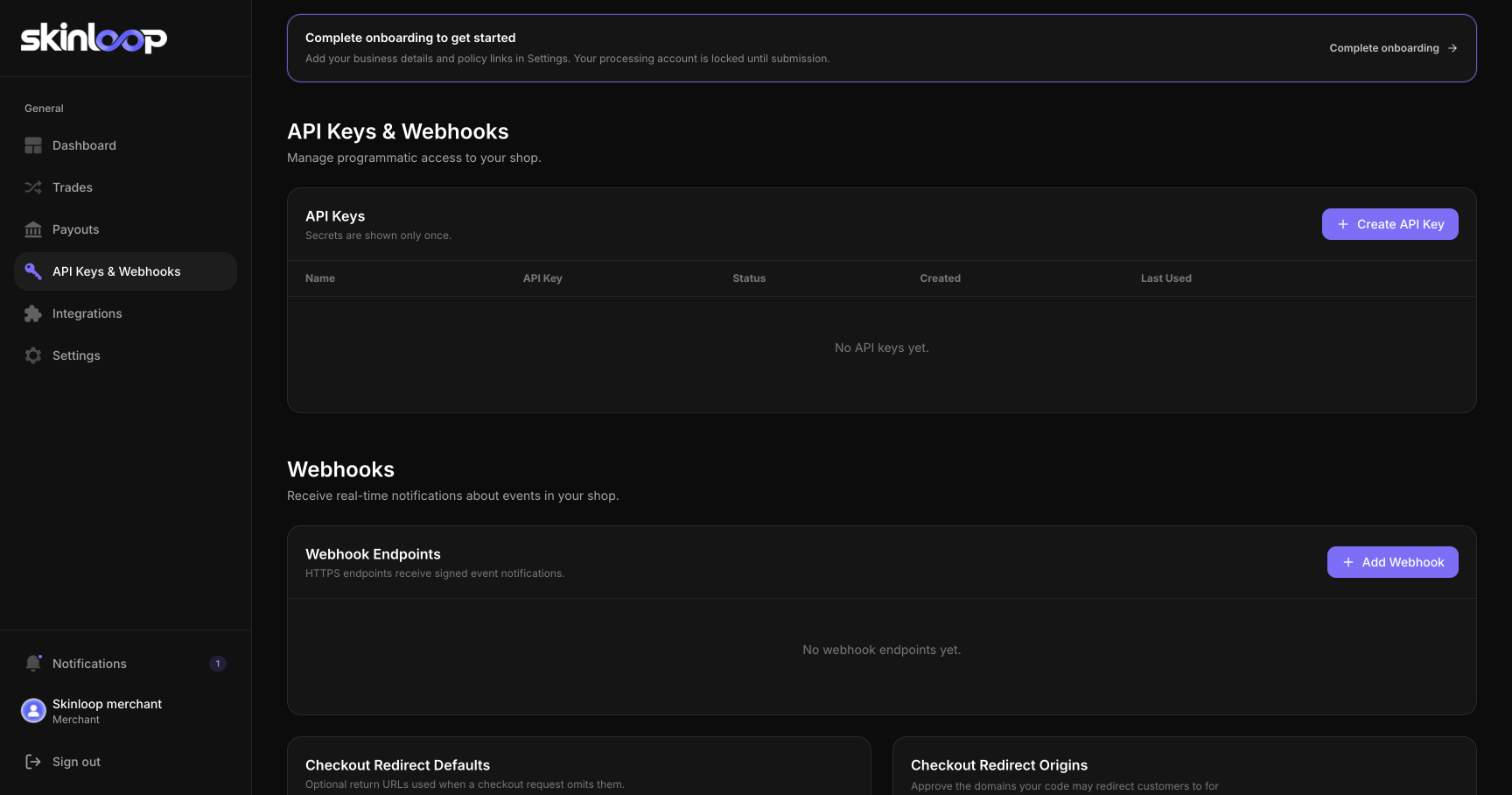
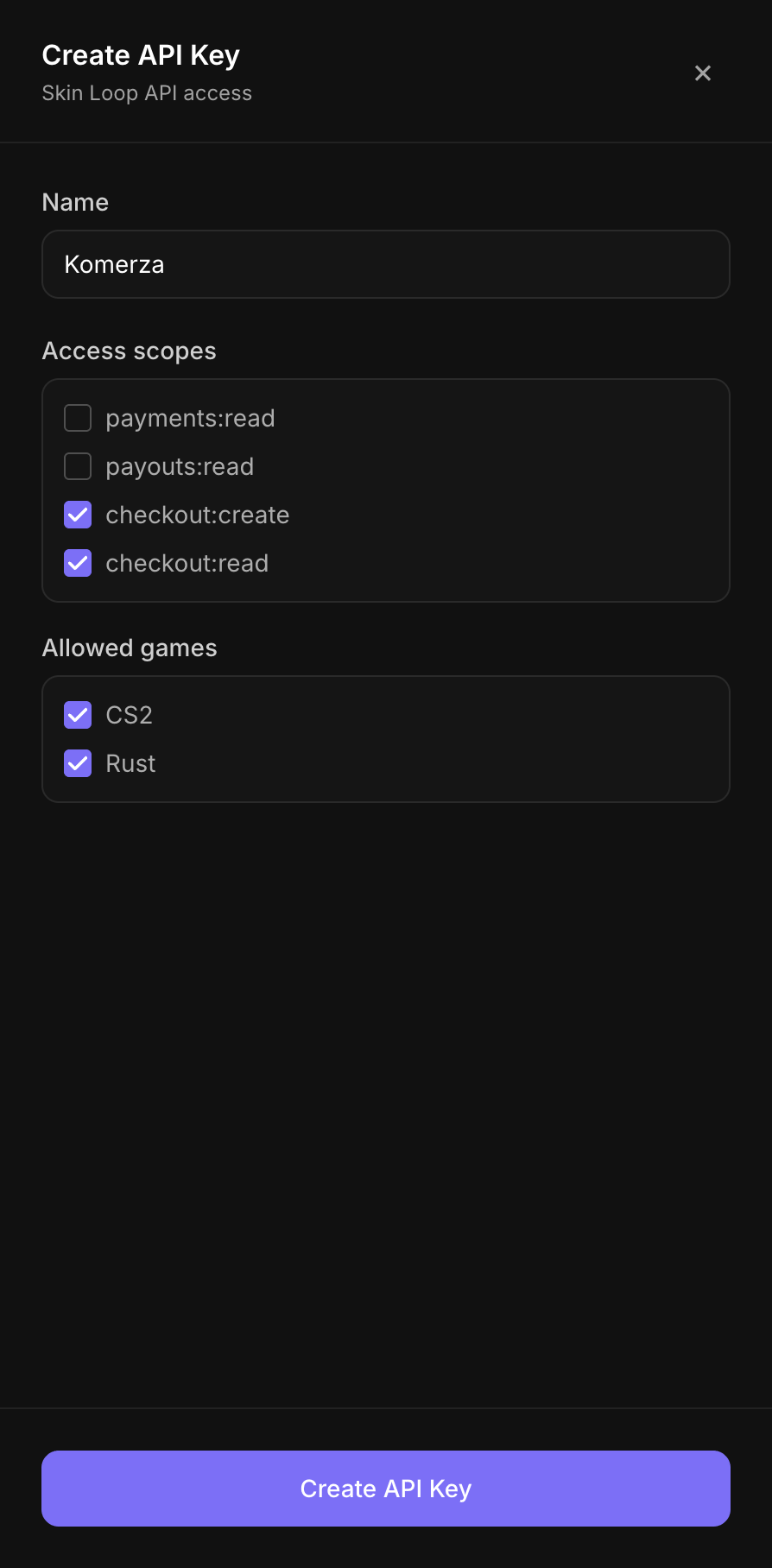
- Name it something you’ll recognise, like
Komerza. - Under Access scopes, tick
checkout:createandcheckout:read. Untickpayments:readandpayouts:read- Komerza doesn’t need them. - Under Allowed games, leave CS2 and Rust ticked, or untick the one you don’t want to accept.
- Click Create API Key and copy the key.
2
Approve checkout.komerza.com as a redirect origin
Skinloop only sends customers back to domains you’ve approved. Komerza’s checkout runs on 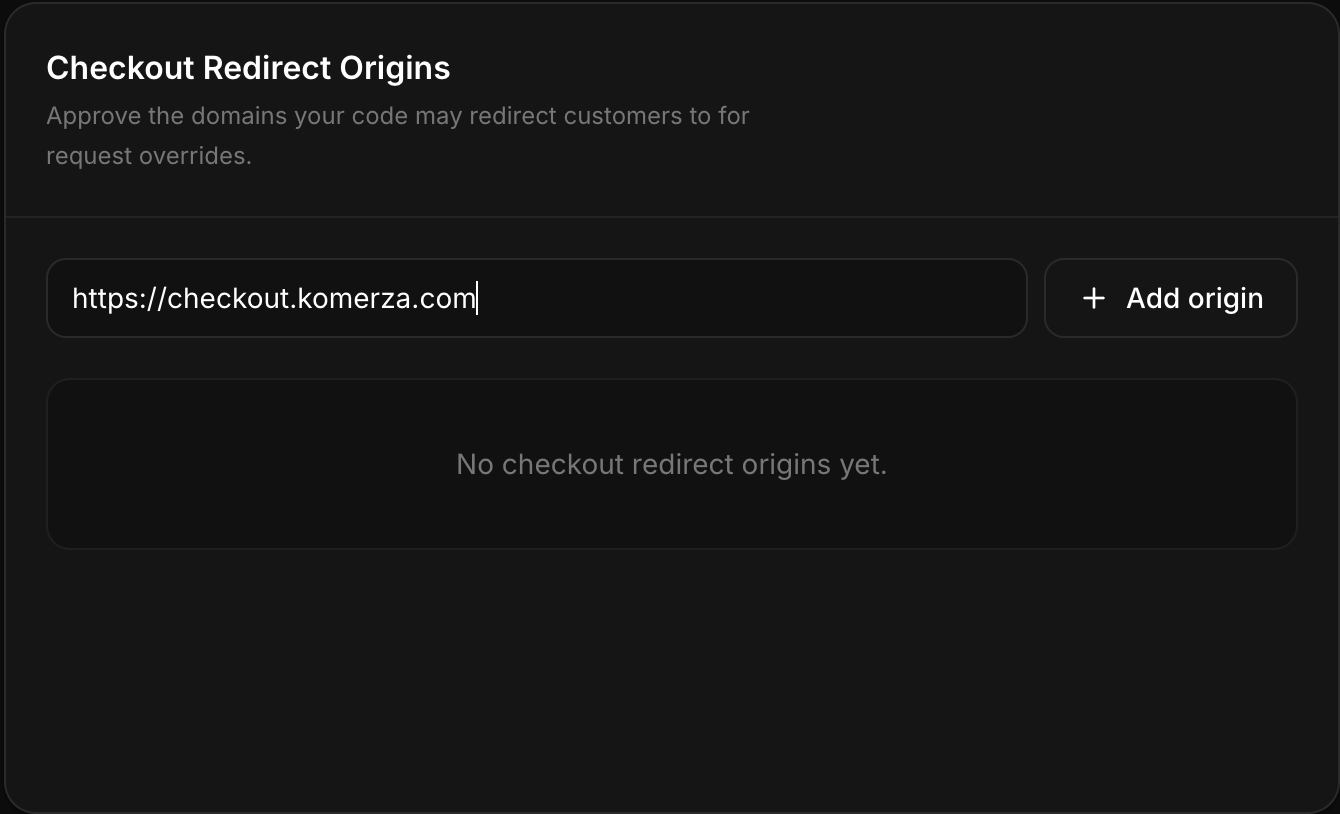
checkout.komerza.com, so it has to be on the list.- On the same page, scroll to Checkout Redirect Origins.
- Enter
https://checkout.komerza.comand click Add origin.
3
Open the Skinloop dialog in Komerza
- In your dashboard, open Settings under Online Store, then go to Payment Methods.
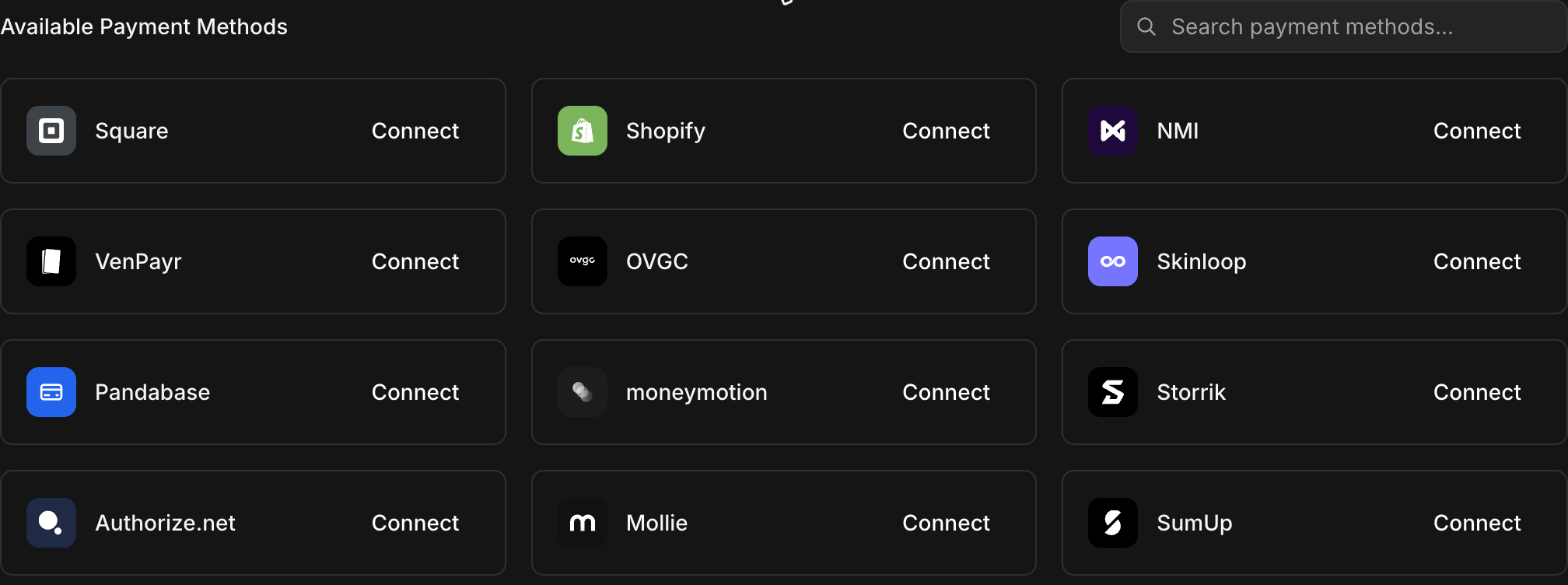
- Under Available Payment Methods, find Skinloop and click Connect.
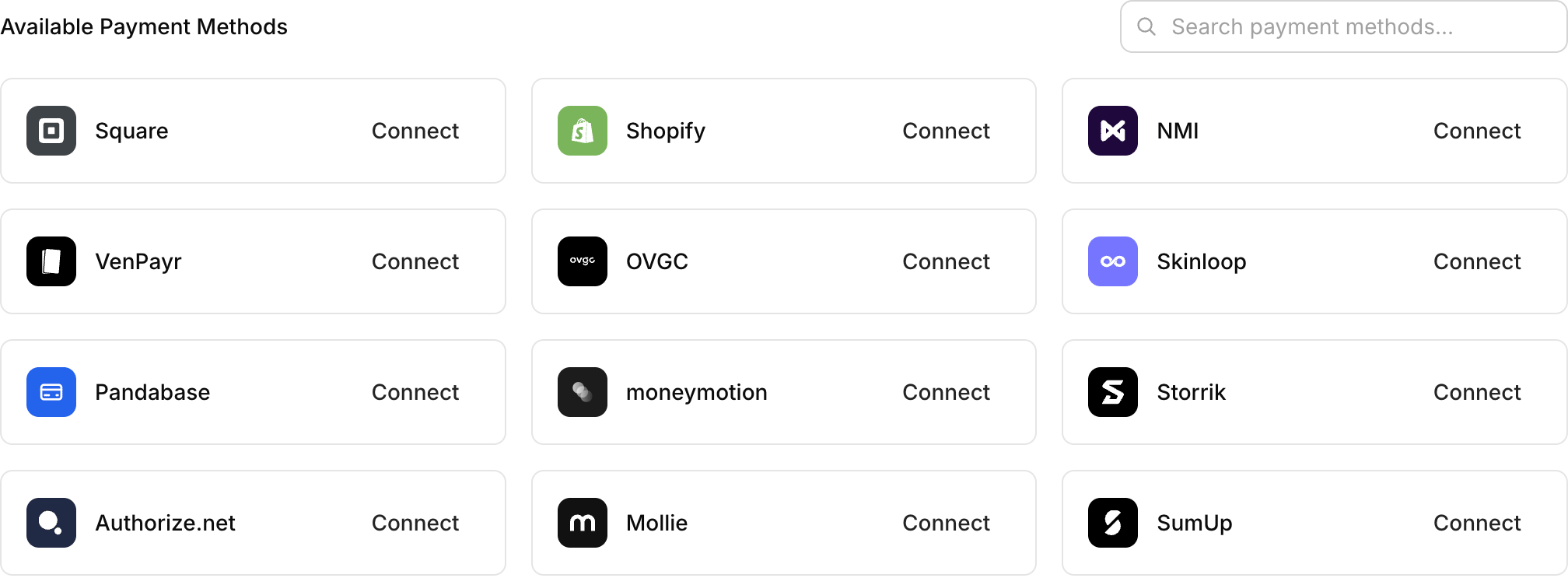
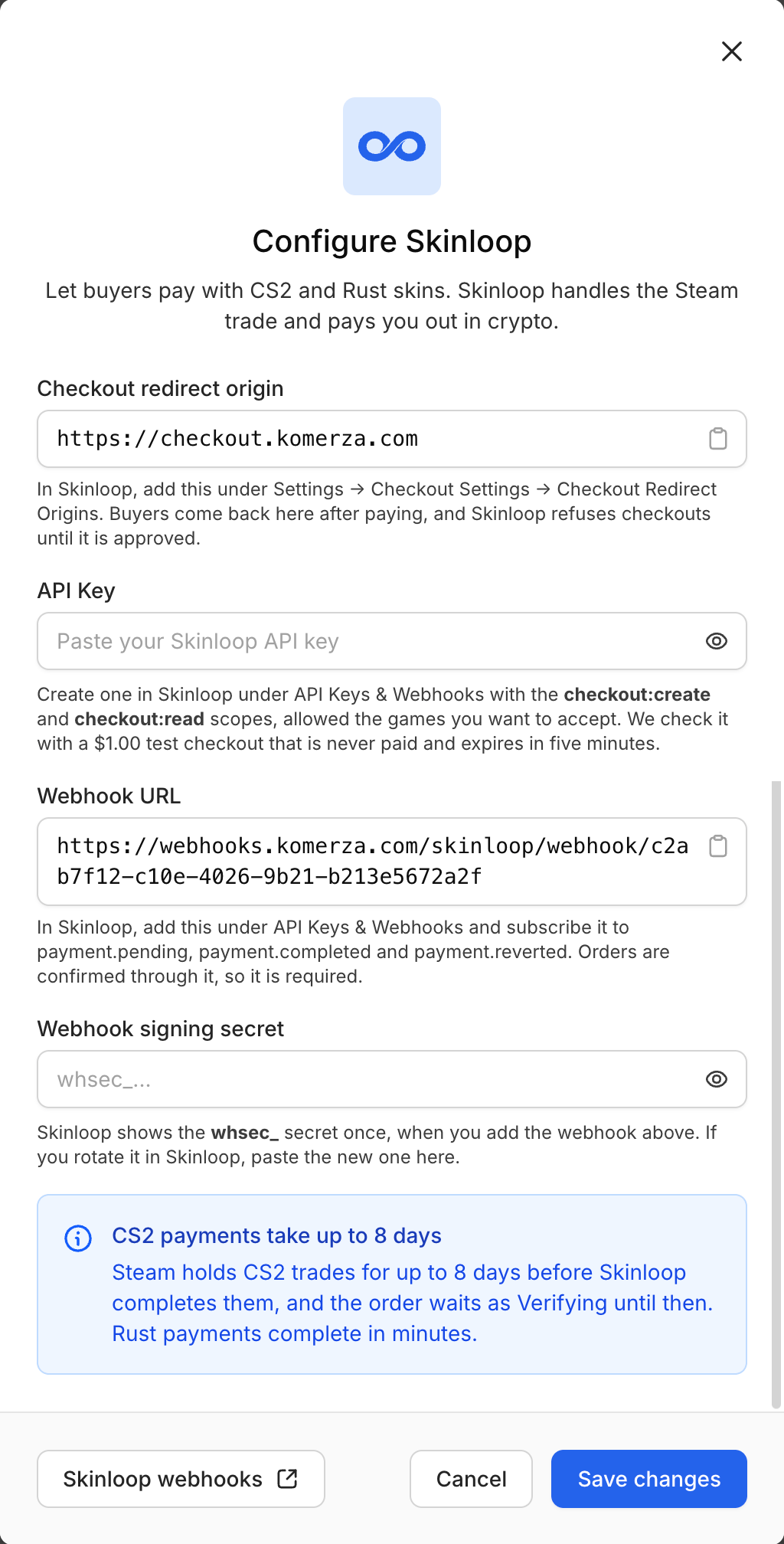
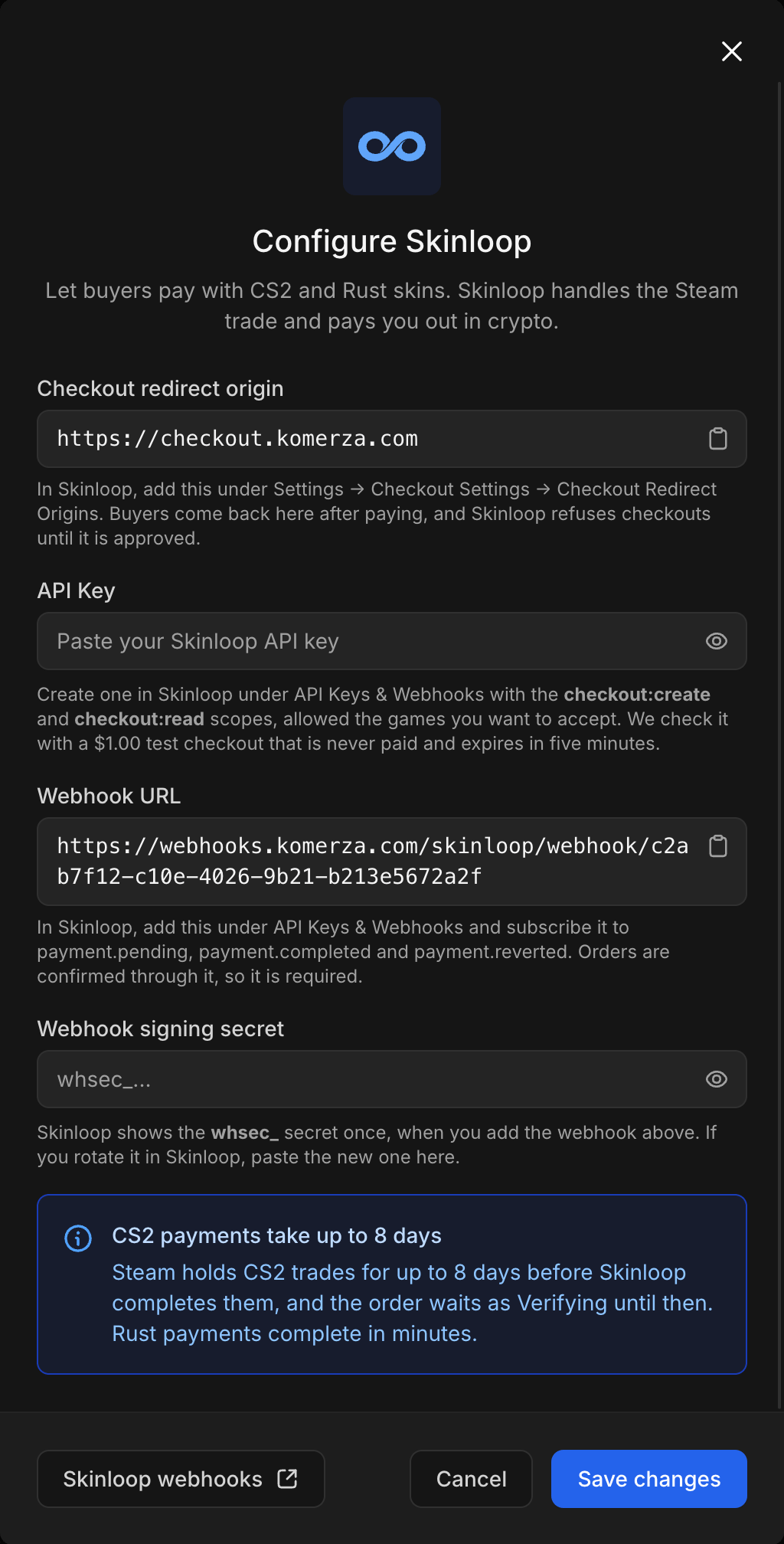
- Paste your API key from step 1. Komerza checks it by creating a $1.00 test checkout that is never paid and expires in five minutes.
- Copy the Webhook URL - it’s unique to your store. You’ll add it to Skinloop in the next step, so keep the dialog open.
4
Add the webhook in Skinloop
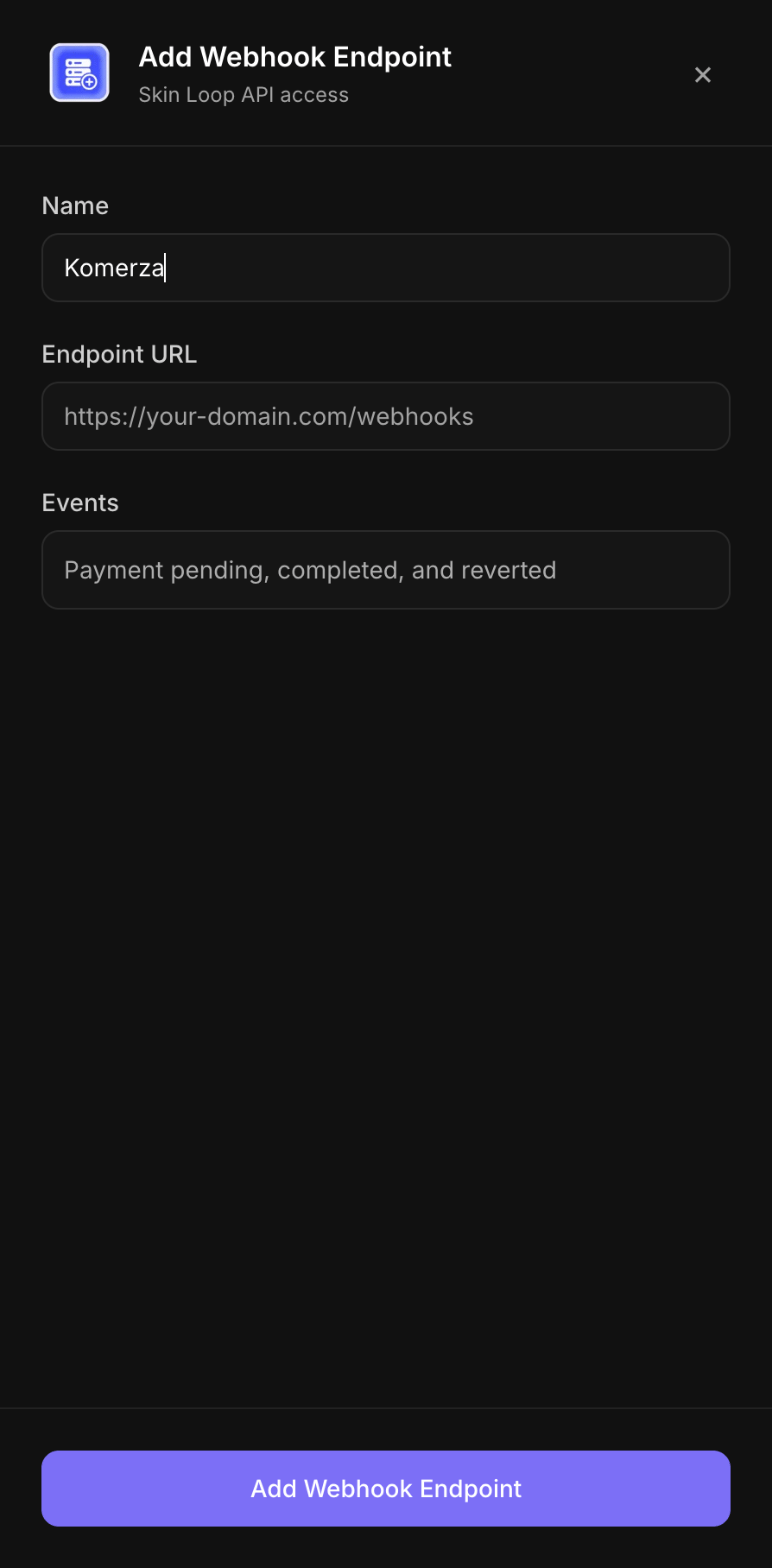
- Back in Skinloop, under Webhooks, click Add Webhook.
- Name it, for example
Komerza. - Paste the Webhook URL from Komerza into Endpoint URL.
- Click Add Webhook Endpoint and copy the signing secret (it starts with
whsec_).
5
Finish connecting in Komerza
Paste the signing secret into Webhook signing secret in the Komerza dialog and click Save changes. Komerza uses it to verify that every payment notification really came from Skinloop. If you ever rotate the secret in Skinloop, paste the new one here.
6
Set unpaid orders to 8 days or longer (CS2)
CS2 trades are subject to a Steam trade hold that can last up to eight days, and Skinloop only completes a CS2 payment once the hold clears. The order waits as Verifying until then, so set Settings → Payment Options → Unpaid Orders to 8 days or longer if you accept CS2 skins.Rust trades have no standard hold, so this is only required for CS2. Komerza allows up to 14 days.
7
Test the connection
Place a small test order on your store, pick Skinloop at checkout and complete the trade. Confirm the order is marked paid and delivered before you go live. Test with Rust skins if you can - there’s no trade hold, so you’ll see the result straight away.
How it works
- A customer picks Skinloop at checkout. Komerza creates a Skinloop checkout with your API key and sends the customer to Skinloop’s hosted page.
- They enter their Steam trade URL and choose skins from their inventory to cover the order.
- Skinloop sends a signed webhook to Komerza for each stage - pending, completed or reverted - and Komerza checks the signature with your secret.
- While the trade is pending, the order waits as Verifying. Rust payments complete in minutes; CS2 payments complete once the Steam trade hold clears, which can take up to eight days.
- On completed, Komerza marks the order paid and triggers delivery. Funds settle to your Skinloop balance - payouts are handled from Payouts in your Skinloop dashboard.