

1
Connect PayPal
Navigate to the Komerza Dashboard Payments page and click the Connect button next to PayPal Friends & Family.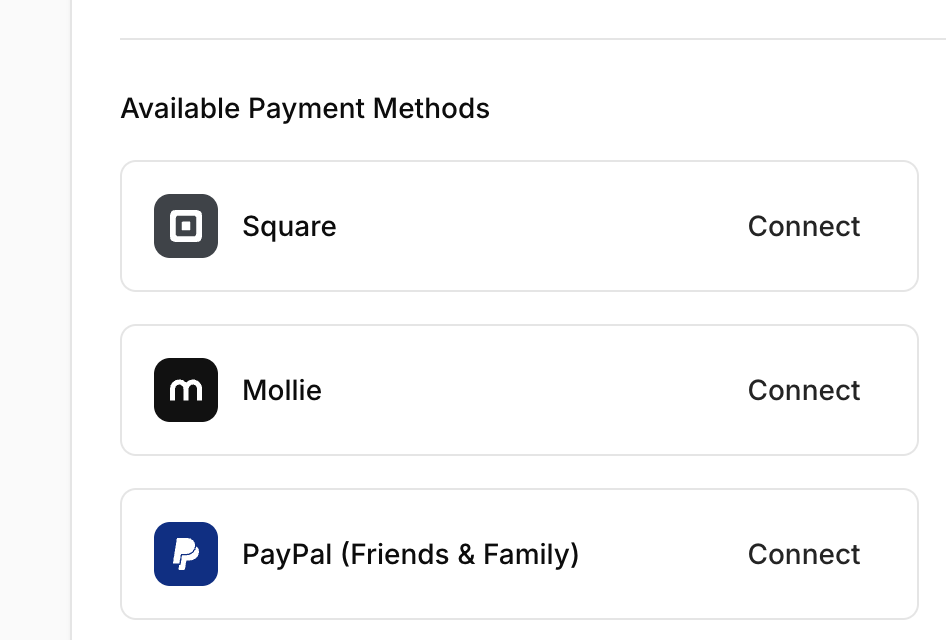
2
Configure Basic Settings
In the dialog box, enter the following details: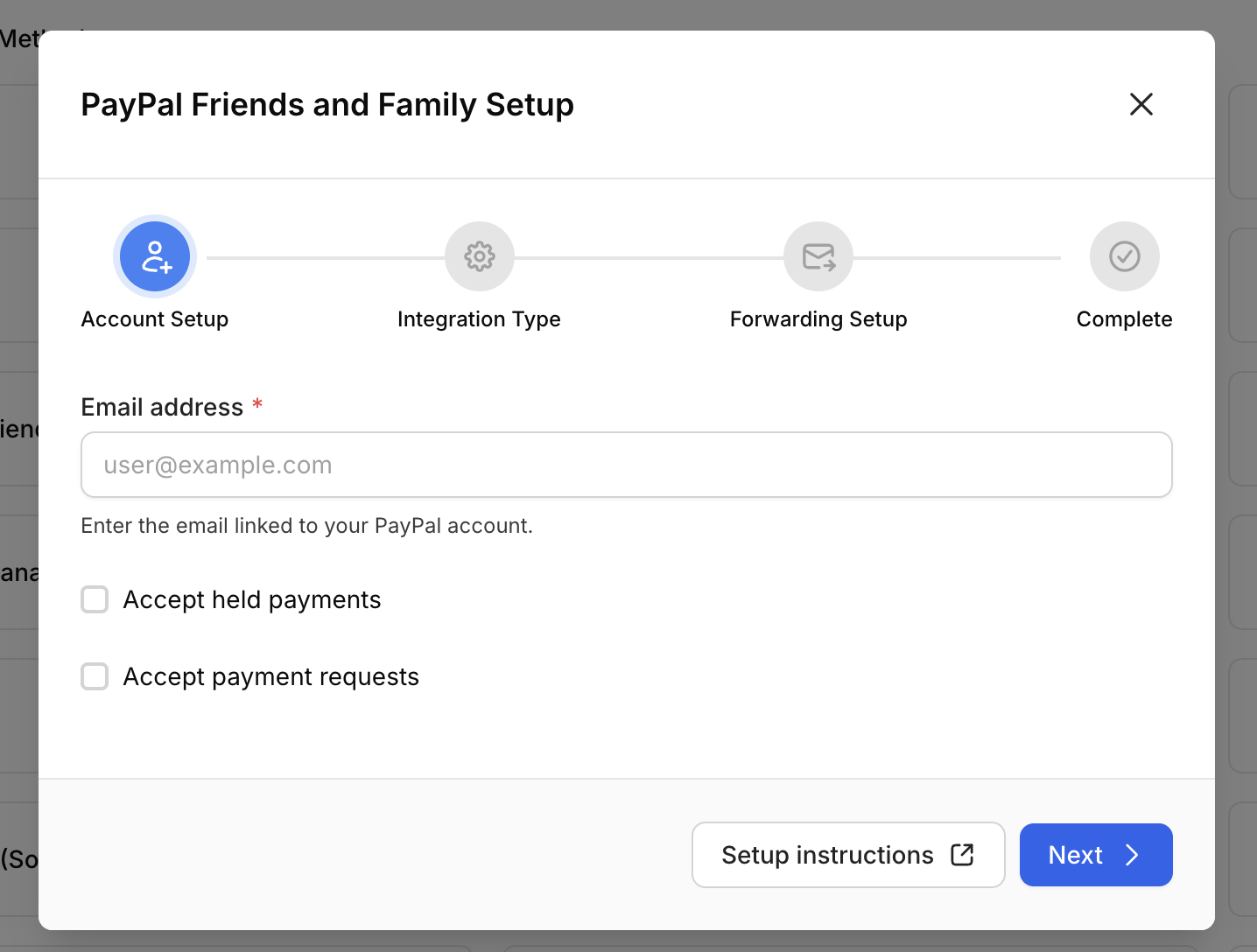
- PayPal Email: Enter the email address associated with your PayPal account.
If you plan to use Email Forwarding, this must be a Gmail address. If using IPN, any email provider is supported.
Risk Settings
Accept Held Payments
Accept Held Payments
PayPal sometimes holds payments for review. Enable this if you want to deliver orders immediately even if the payment is held.
Accept Payment Requests
Accept Payment Requests
Enable this if you want Komerza to automatically try to accept payment requests.
3
Choose Integration Type
Select the integration method that best fits your needs: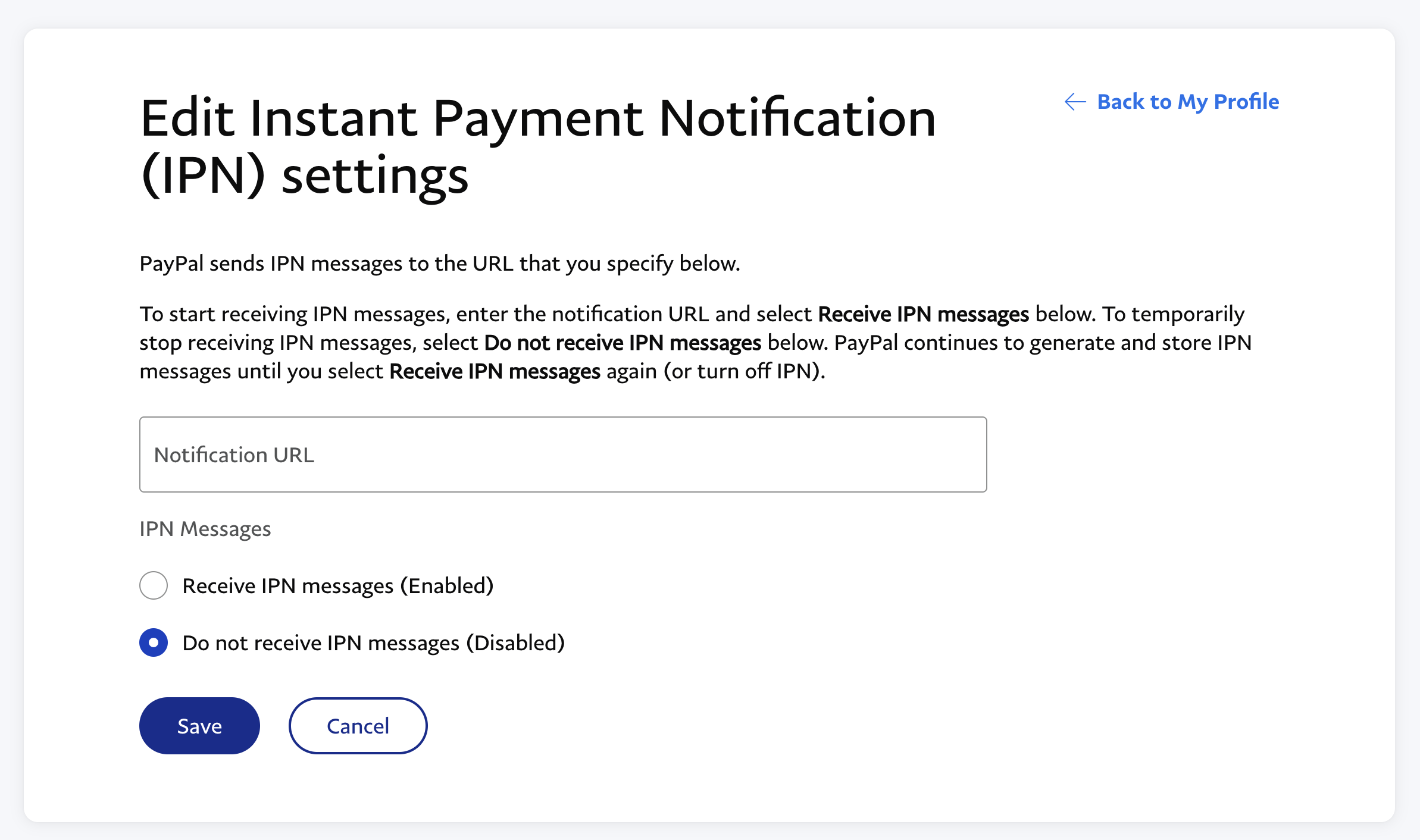
Option A: IPN (Instant Payment Notification)
- Pros: Very stable, standard integration.
- Cons: Easily detectable by PayPal.
- Recommendation: Not recommended for high-volume merchants who want to stay under the radar.
- Select IPN as the integration type.
- Click Next.
- The dialog will provide you with a Notification URL.
- Log in to your PayPal account settings and paste this URL into the IPN settings area.
- Paste the URL into the Notification URL field.
- Ensure Receive IPN messages (Enabled) is selected.
- Click Save.
Option B: Email Forwarding
- Pros: Harder to detect, very reliable for privacy.
- Cons: Relies on email parsing, which can break if PayPal changes email formats.
- Note: “Notes Version” is forced to Version 1 for stability when using this method.
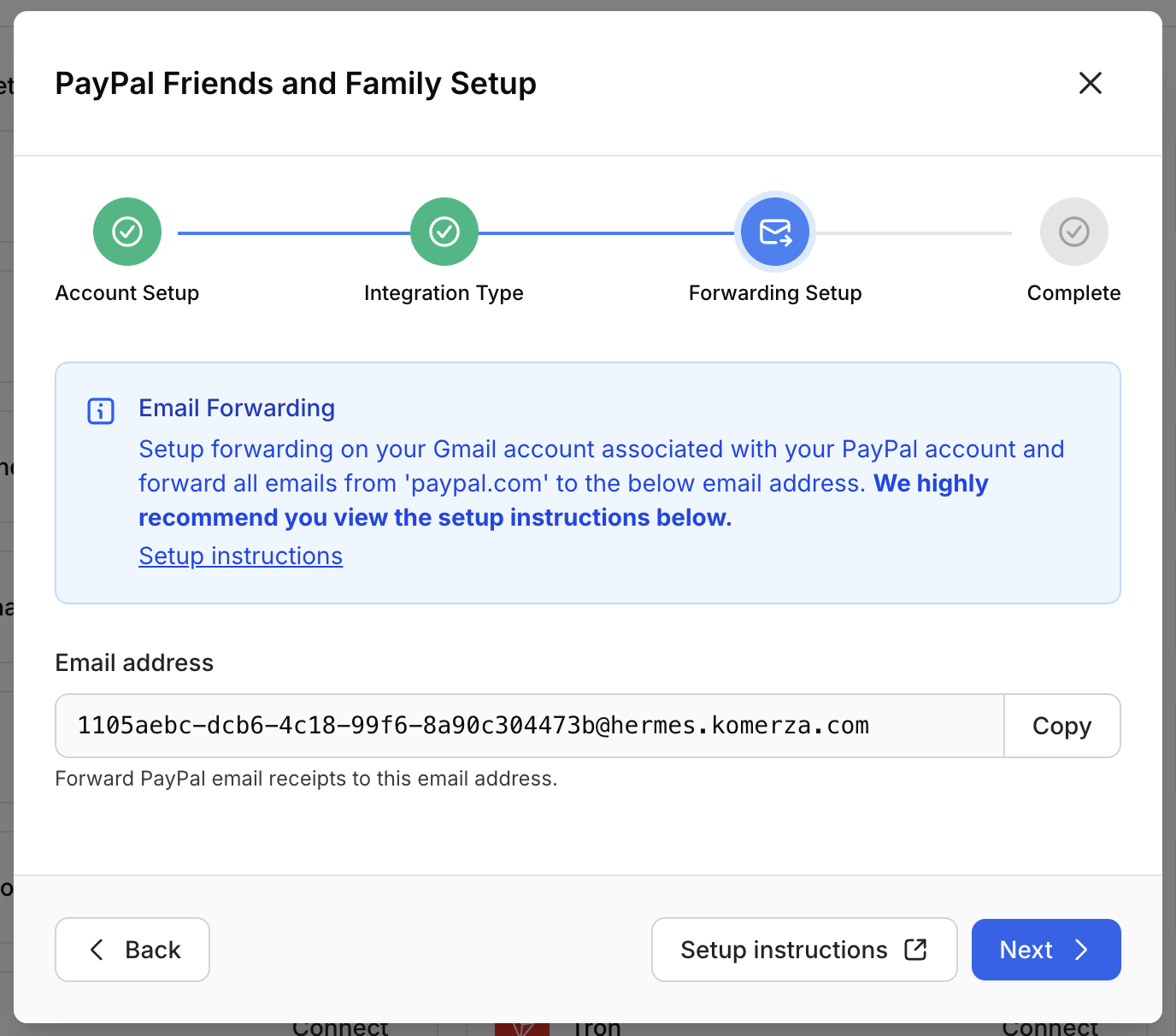
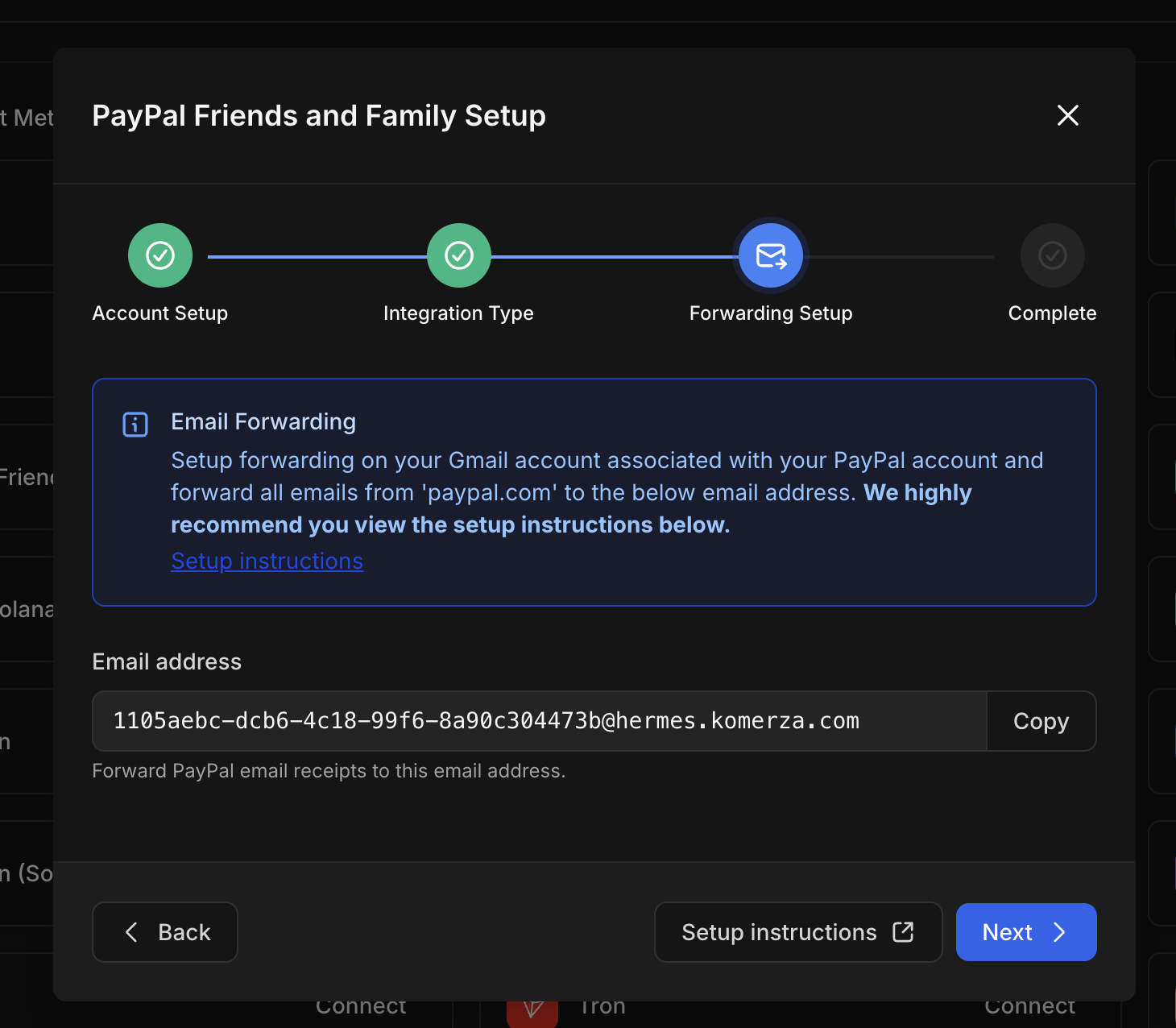
- Select Email Forwarding as the integration type.
- Click Next.
- You will be given a
@hermes.komerza.comforwarding address.
4
Setup Email Forwarding (If Selected)
If you chose Email Forwarding, follow these steps to forward payment receipts to Komerza.Common Addresses: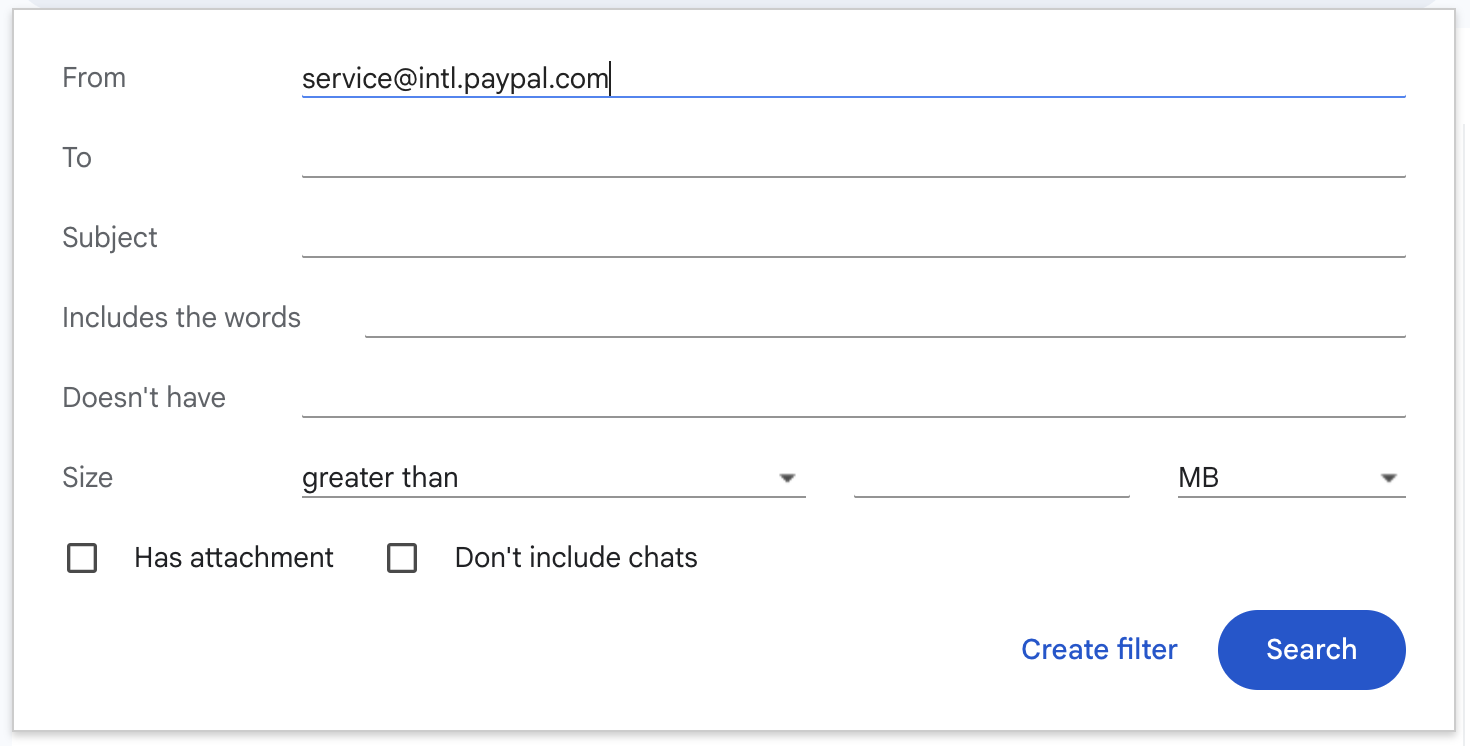
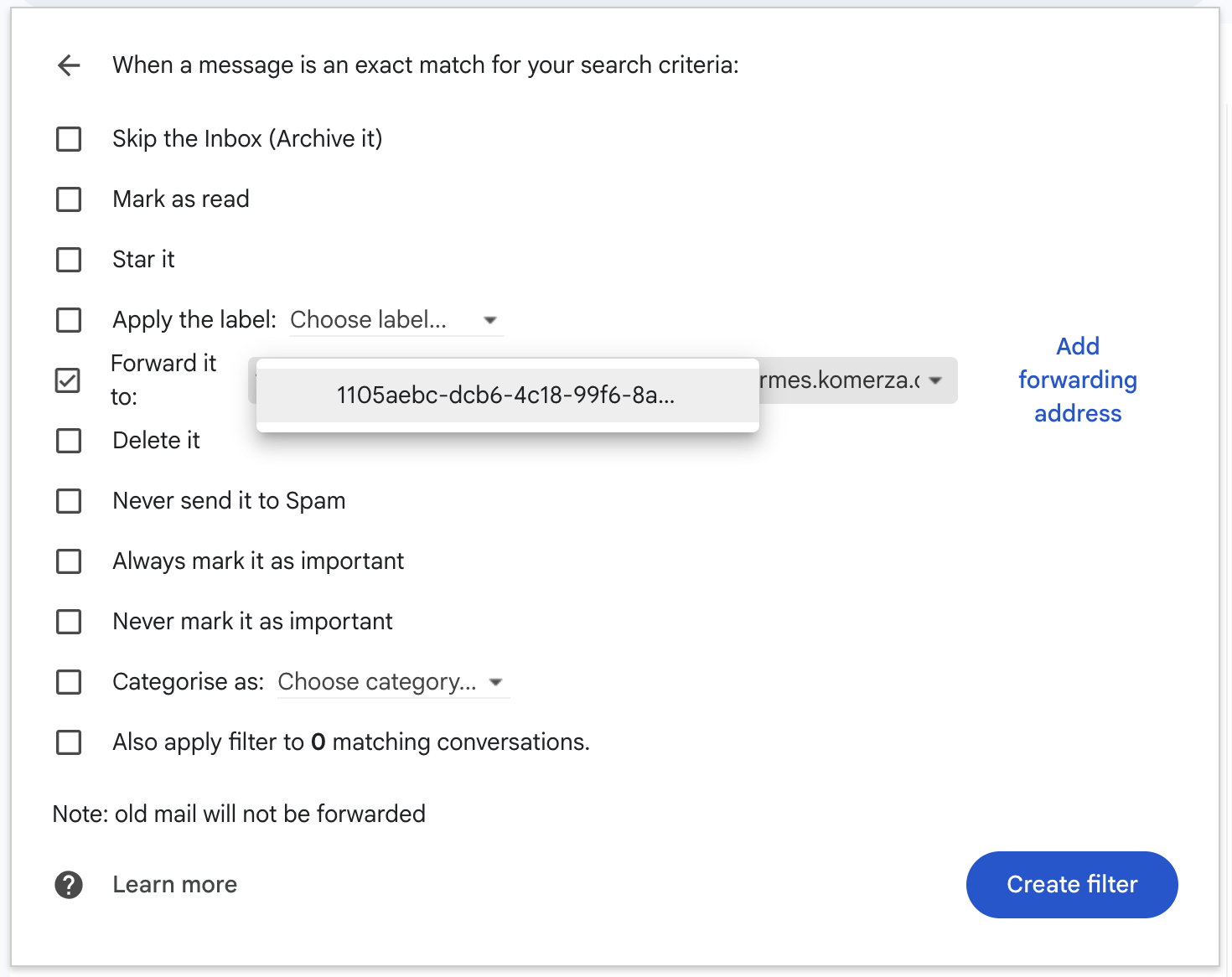
1. Add Forwarding Address
- Login to your Gmail account.
- Go to Settings > See all settings > Forwarding and POP/IMAP.
- Click Add a forwarding address.
- Paste the
@hermes.komerza.comaddress provided in the dashboard. - Complete the verification steps (check your inbox/spam for the code).
2. Configure Filter
- Click “creating a filter” in the Forwarding tab.
- You need to set the From address to your specific PayPal service email.
Finding Your PayPal “From” Address
The “From” address varies by region. To be certain, check a recent email from PayPal or send yourself a test payment ($0.01).Most users outside of major specific regions will use:
service@intl.paypal.com- Enter your region’s address (e.g.,
service@paypal.com) in the From field.
- Click Create filter.
- Check Forward it to: and select the hermes email address.
- Click Create filter.
5
Test the Integration
Your PayPal integration is configured.We strongly recommend making a $1 test payment on your store to confirm that the system correctly detects the payment and marks the order as paid.