> ## Documentation Index
> Fetch the complete documentation index at: https://docs.komerza.com/llms.txt
> Use this file to discover all available pages before exploring further.
# Setup Apple Pay with Stripe
> Configure Apple Pay domains in Stripe for Komerza Checkout and Embeds
To enable Apple Pay for your Komerza store, you need to verify the domains where payment requests will be initiated.
1. Go to the Stripe Dashboard settings for [Payment Method Domains](https://dashboard.stripe.com/settings/payment_method_domains).
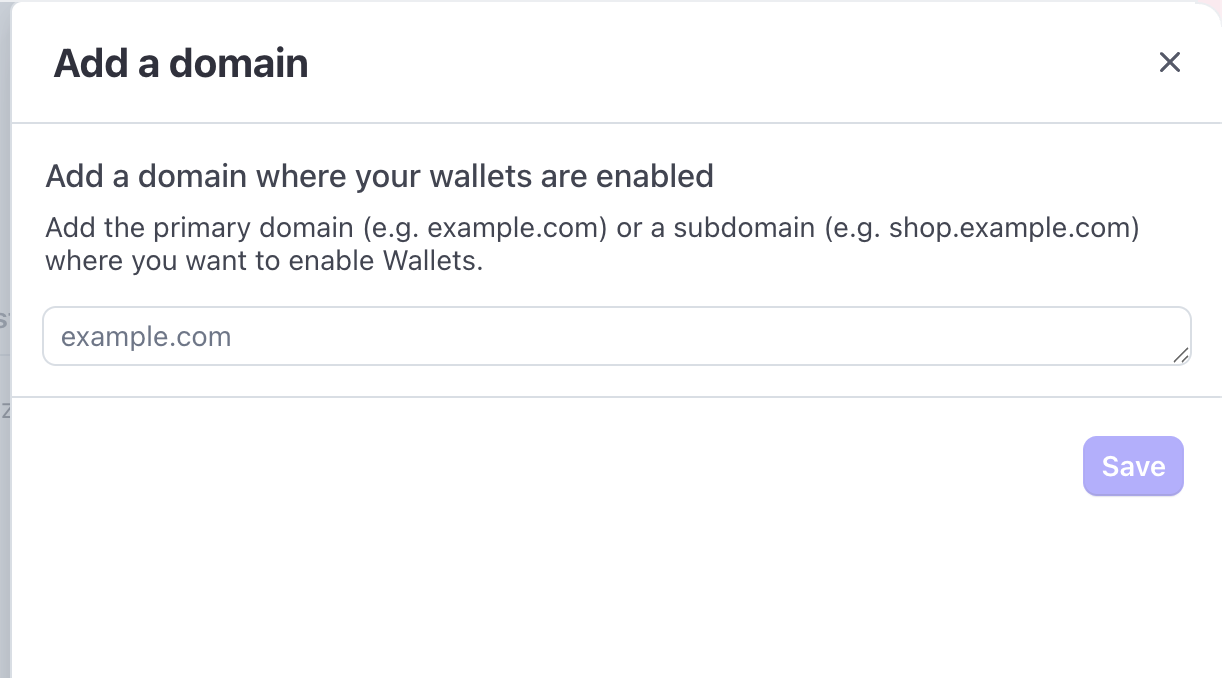
2. Click on the **"Add a new domain"** button.
 3. Enter `checkout.komerza.com` in the domain field.
 ## Using Embeds
If you are using Komerza Embeds on your own website, you must also add the domain where the embeds are running.
1. Click **"Add a new domain"** again.
2. Enter your website's domain (e.g., `your-website.com`).
## Using Embeds
If you are using Komerza Embeds on your own website, you must also add the domain where the embeds are running.
1. Click **"Add a new domain"** again.
2. Enter your website's domain (e.g., `your-website.com`).